Isabel Marant: Shopping Bag
Slide left/right to compare original Isabel Marant shopping bag to my concept shopping bag
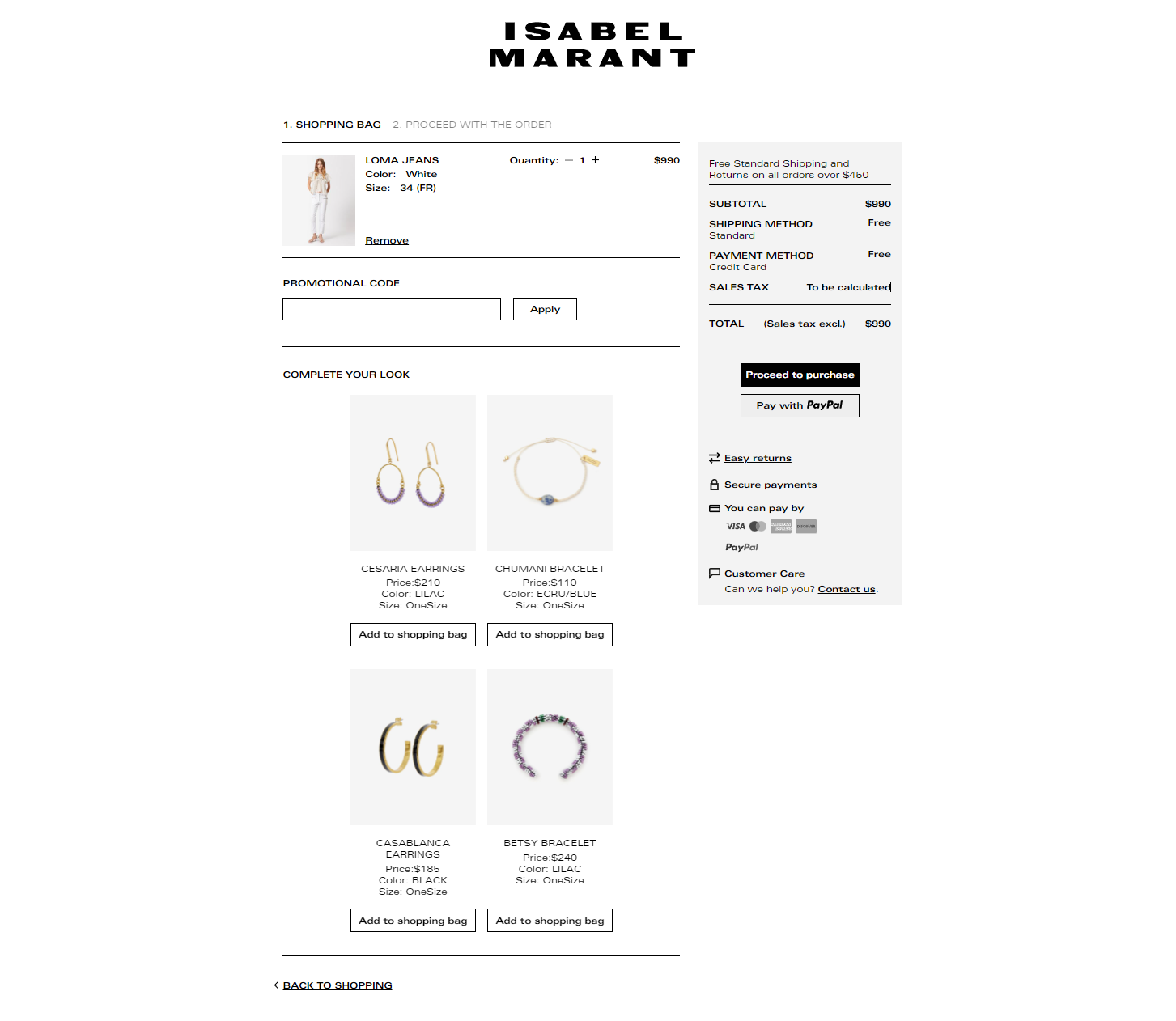
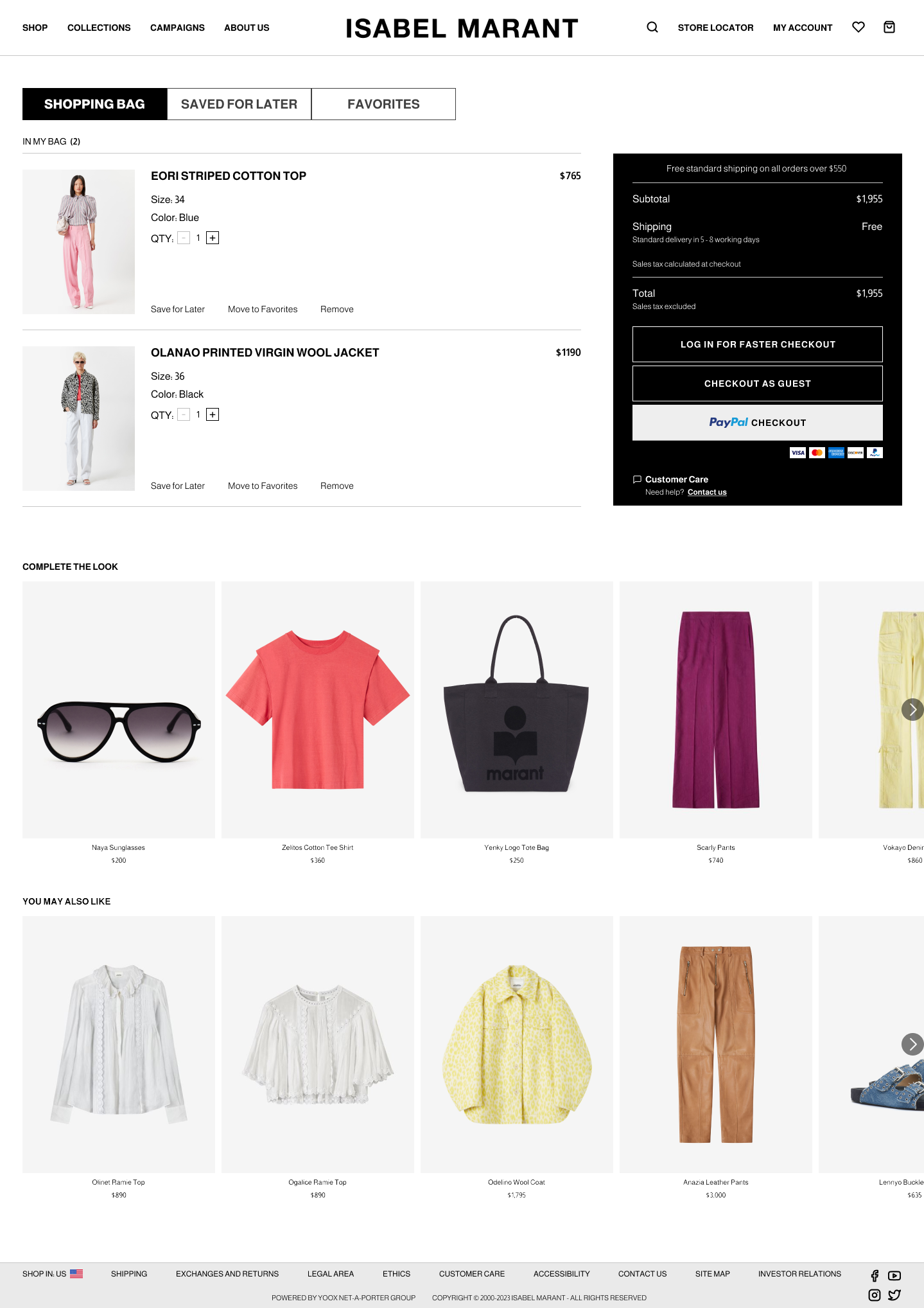
Left: Original Shopping Bag ; Right: Concept Shopping Bag
Shopping Bag: Quick-View
Clicking on the shopping bag icon will also bring up the shopping bag quick-view (sidebar overlay).
I decided to have the shopping bag icon bring up the quick-view, instead of navigating to “Shopping Bag” page, so users can view their shopping bag without leaving the page they’re currently viewing.
Within the “Shopping Bag” overlay, users can still view important information they need, such as the items, quantity, and price.
Shopping Bag
Customers can navigate to the full shopping bag page by clicking “view bag.”
The top of the shopping bag screen has tabs consisting of “Shopping Bag, Saved for Later, and Favorites.”
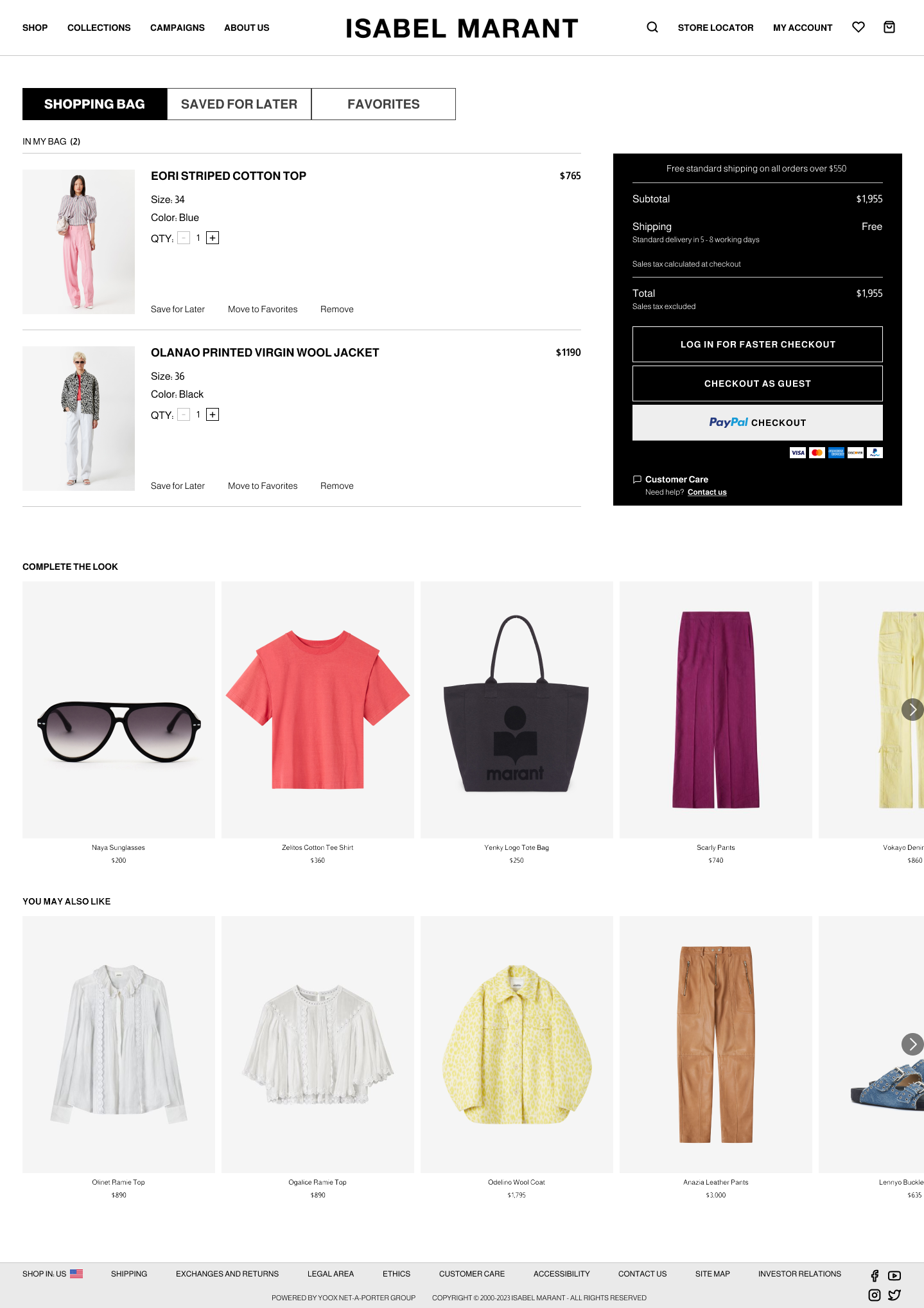
Since the user is currently viewing “Shopping Bag,” the relative tab is selected- it has a gray background with bold, black, and underlined font to show which tab is currently being viewed.
Under the “Shopping Bag” tab, all the bag items are displayed. Here, users can edit their bag, save an item to purchase at a different time, or move the item from their bag to their favorites list.
To the right of the items is the payment summary; the payment summary shows the estimated totals, default shipping method, checkout options, accepted payment options, and a quick link to customer service.

Similar to the bottom of the “Product Page,” the last two sections of the shopping bag page are recommended items based on what the customer has in their bag.
The images below are rough drafts/quick sketches of the Shopping Bag page.


 Tinsley Designs