Isabel Marant: Guest Checkout
Slide left/right to compare original Isabel Marant Checkout Process to my concept checkout process
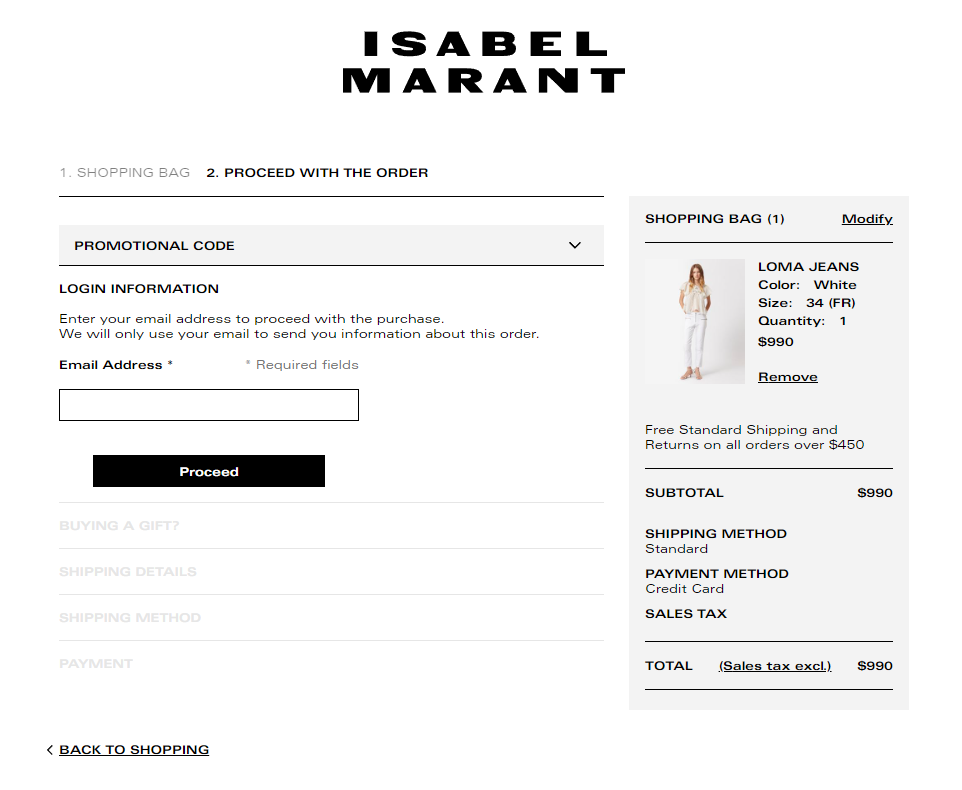

Left: Original Checkout Process ; Right: Concept Checkout Process
Guest Checkout
On the “Shopping Bag” page, when users click on “Guest Checkout,” they will be taken to the guest checkout page; the guest checkout page is for users who do not have an account and do not want to make one or log in.
The “Guest Checkout” takes users to a secured page to input their contact, shipping, and payment information.
Throughout the checkout process, there is a progress bar at the top; the progress bar tells users how many steps there are to checkout, where they currently are in the process, and it allows users to go back to another step.
I used the brand logo as indicators for the progress bar.

Checkout Progress Bar
The indicators are red to show what step the user is currently on, opaque black to show what step(s) they have completed, and gray/50% opacity to show what steps have not been completed.
Users may go back to a step they have completed, but they cannot skip ahead. This is indicated by the colors and opacities; completed pages are opaque black and clickable, and preceding pages are grayed out to indicate that they cannot to be skipped to.
Similar to the progress bar, the order information section (black rectangle on the right) is on every page of the checkout process and updates as more information is processed (i.e. shipping cost).
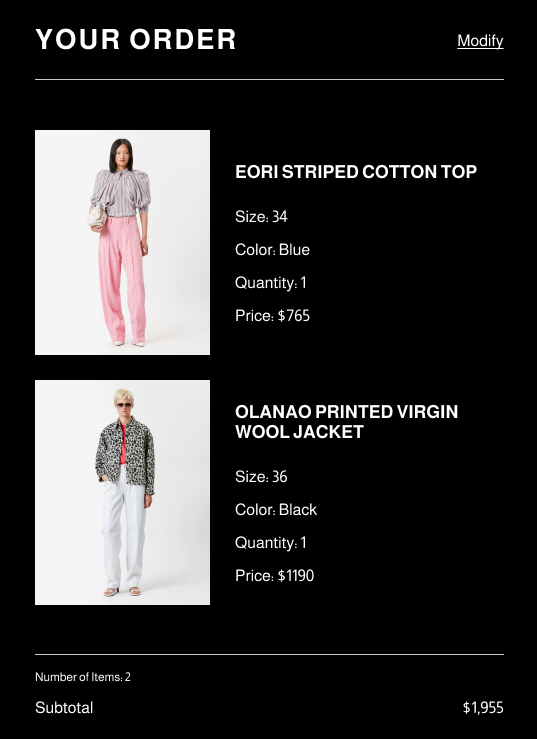
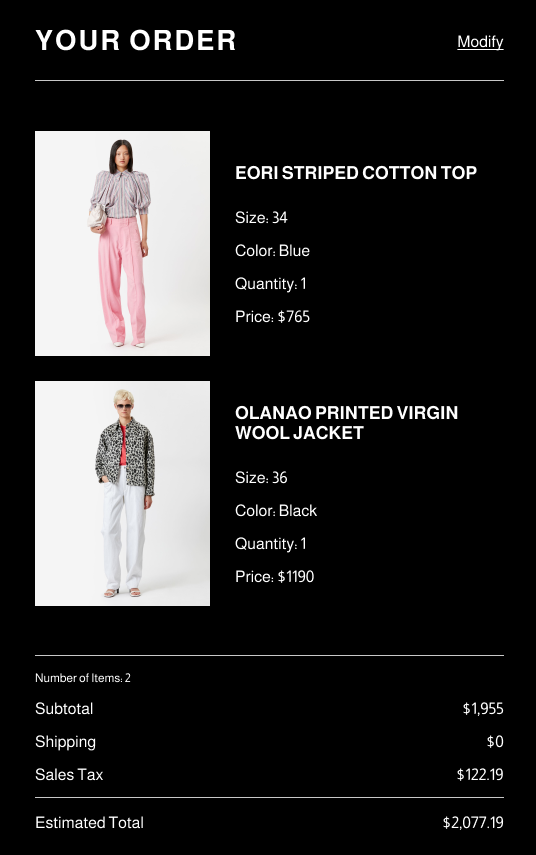
Users can also “modify” or change their order by clicking on the “Modify” link, which takes them back to their shopping bag.
Guest Checkout: Contact Information
Below the progress bar on the Contact Information page, there are text boxes where users can enter their relevant information.
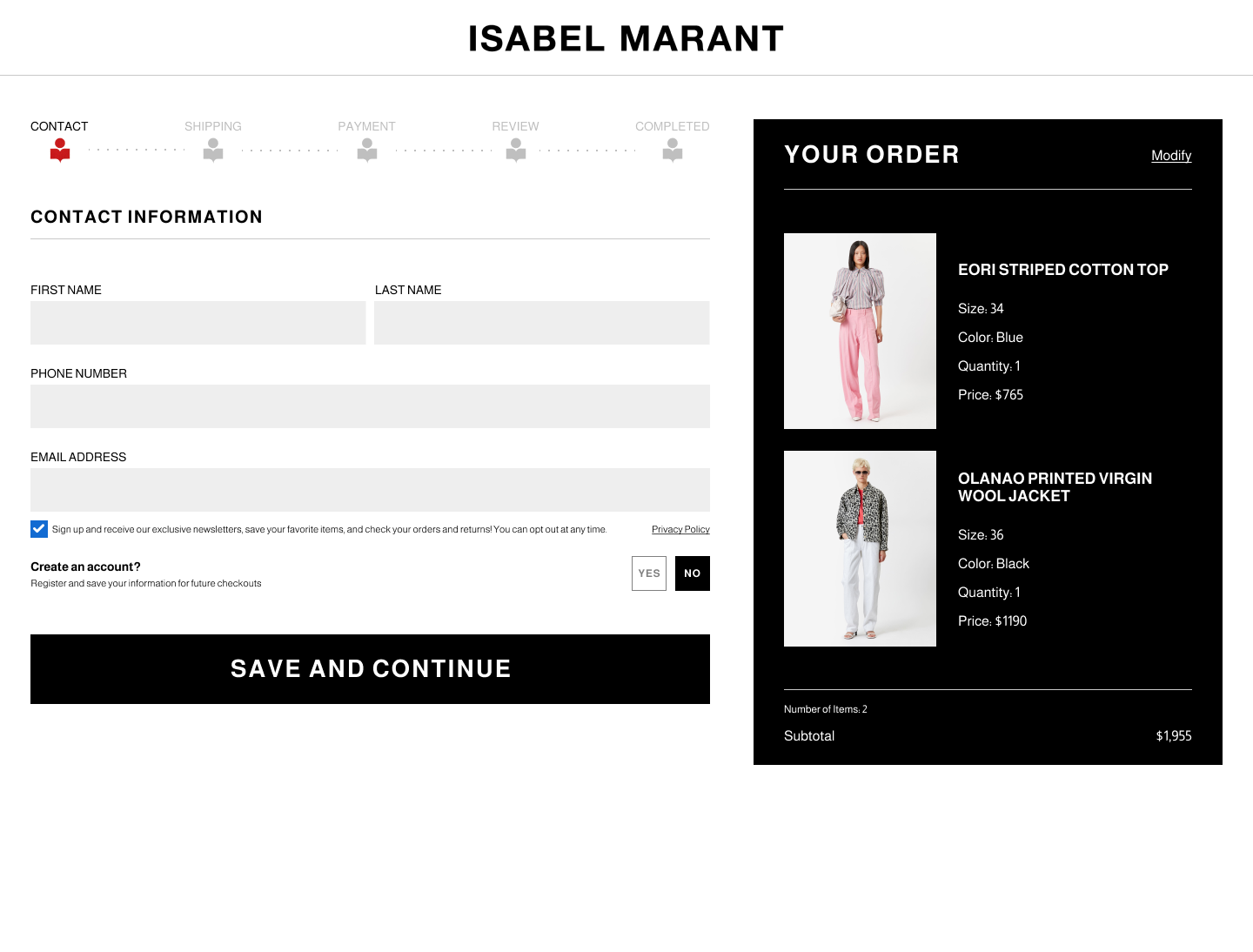
The option to sign up for emails and create an account are included since the required information for those things are already entered in the text boxed.
Guest Checkout: Shipping Information
Moving onto the Shipping Information page, you can see that the contact information from the previous page is saved and included.
When users select a delivery option, their selection is opaque, has a thick black border, and the radio button turns red. The unselected option(s) is slightly grey-out (at 75% opacity) and the radio button is unfilled.
In the gift section, users can indicate if their order is a gift. If the order is a gift and “Yes” is selected, then additional text boxes expand where users can enter the gift information.
Guest Checkout: Payment Information
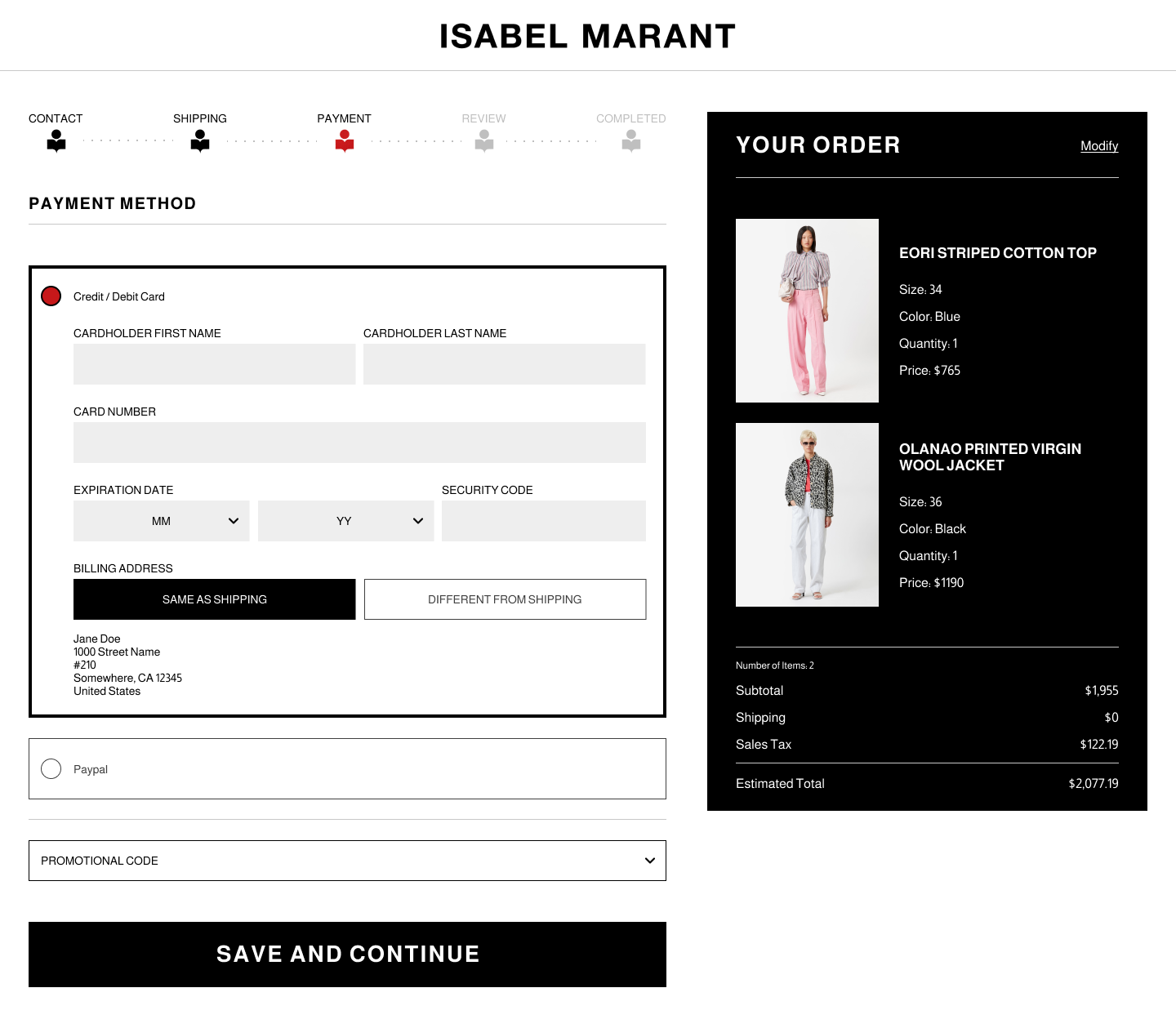
After the “Shipping Information” page, the users move to the “Payment Information” page. This is where they enter their payment information and can add a promotional code if they have one.
Guest Checkout: Review
The second-to-last page, within the guest checkout process, is the review page where customers can review the information they entered.
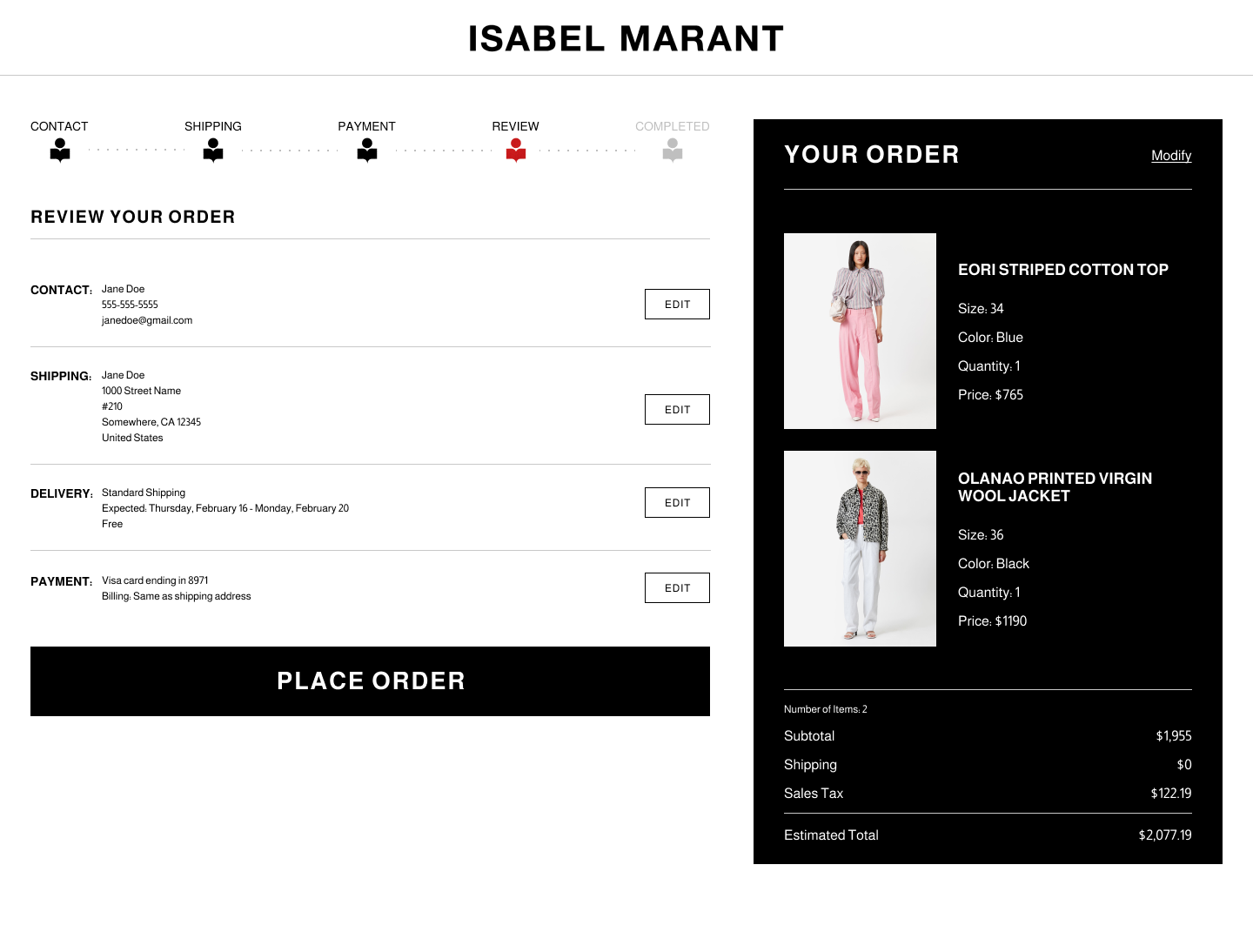
Each section includes an “Edit” button that allows users to change previously entered information by navigating them to the respective checkout page.
Guest Checkout: Completed
Finally, once the order is placed, customers are taken to the “Completed” page. The “Completed” page is the final step of the guest checkout process, and it thanks the customer for their order, gives them their order information, and lets customers know that their order is being processed.

The “Continue Shopping” button takes users back to Isabel Marant’s home page.


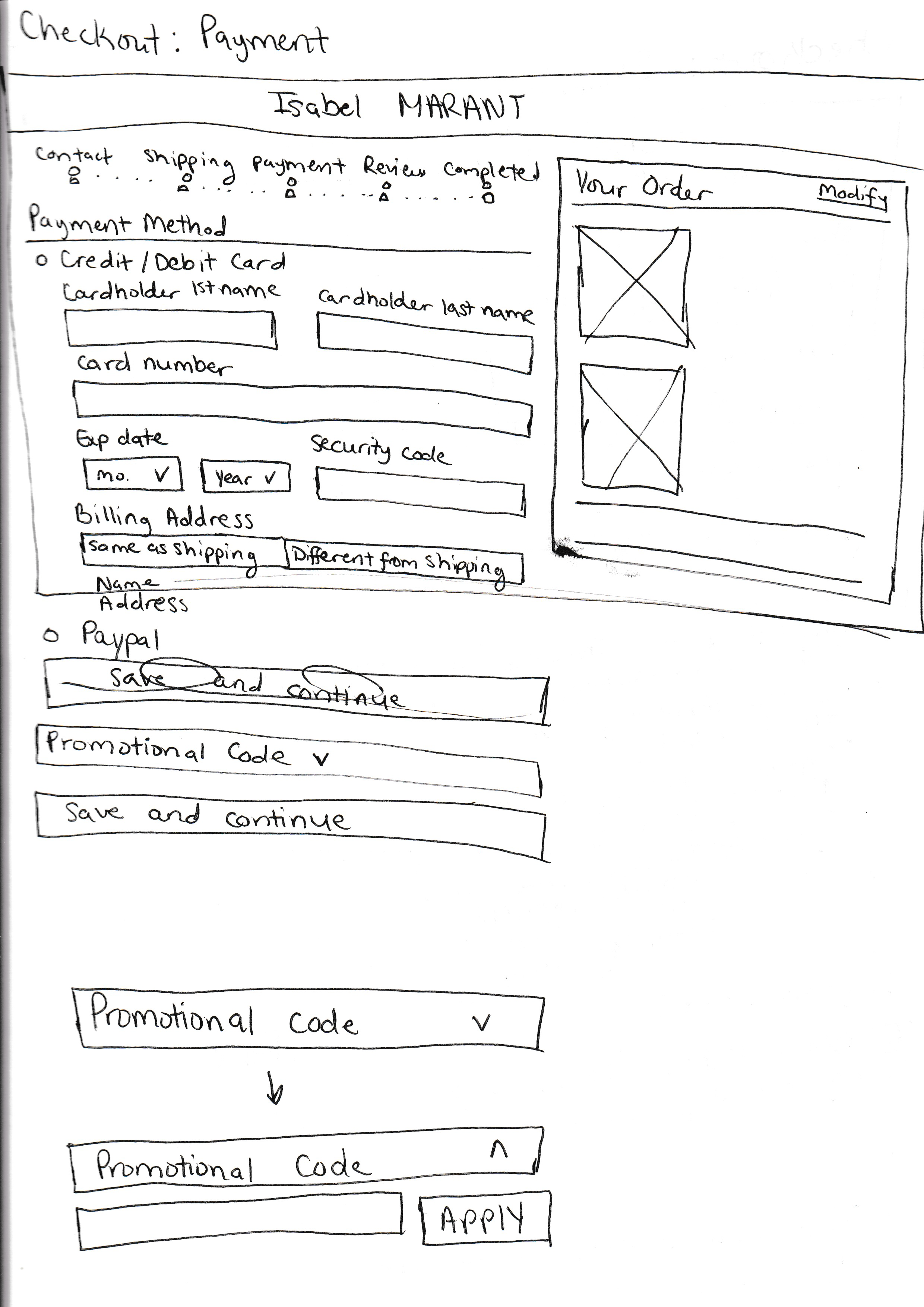

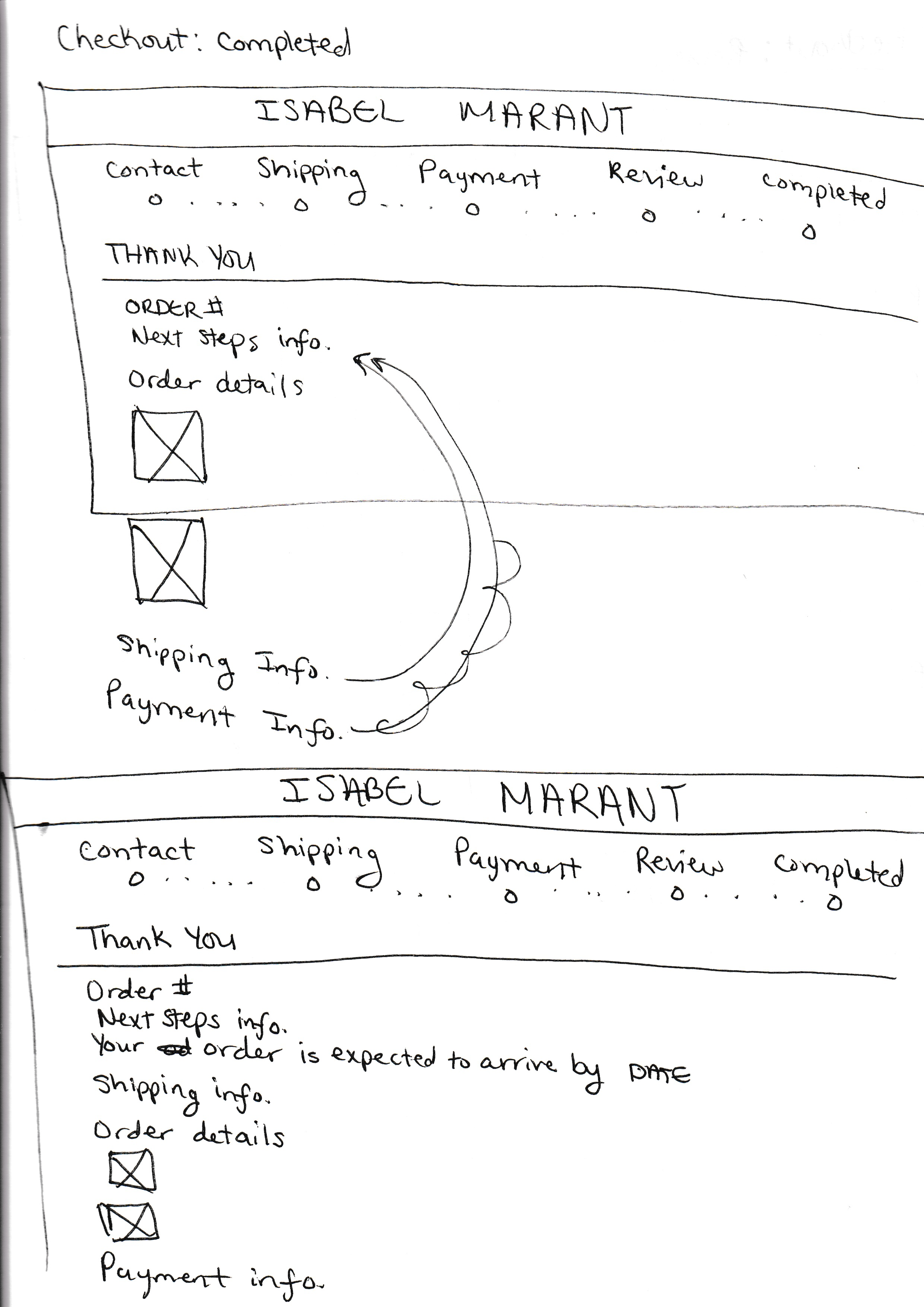
Rough drafts/sketches of the guest checkout pages and process.
 Tinsley Designs